How to Cut Mylar Stencils on the xTool Ps2 Without Melting
How to Cut Mylar Stencils on the xTool P2 Without Melting
f you’ve ever tried to laser cut Mylar, you know the heartbreak of watching a beautiful design turn into a shriveled, melted mess. Mylar is a fantastic material for reusable stencils, but it is notoriously finicky.
After plenty of trial and error with my xTool PS2, I’ve perfected a method I call the "Mylar Sandwich." This technique ensures crisp edges, zero warping, and stencils that look professional every time.
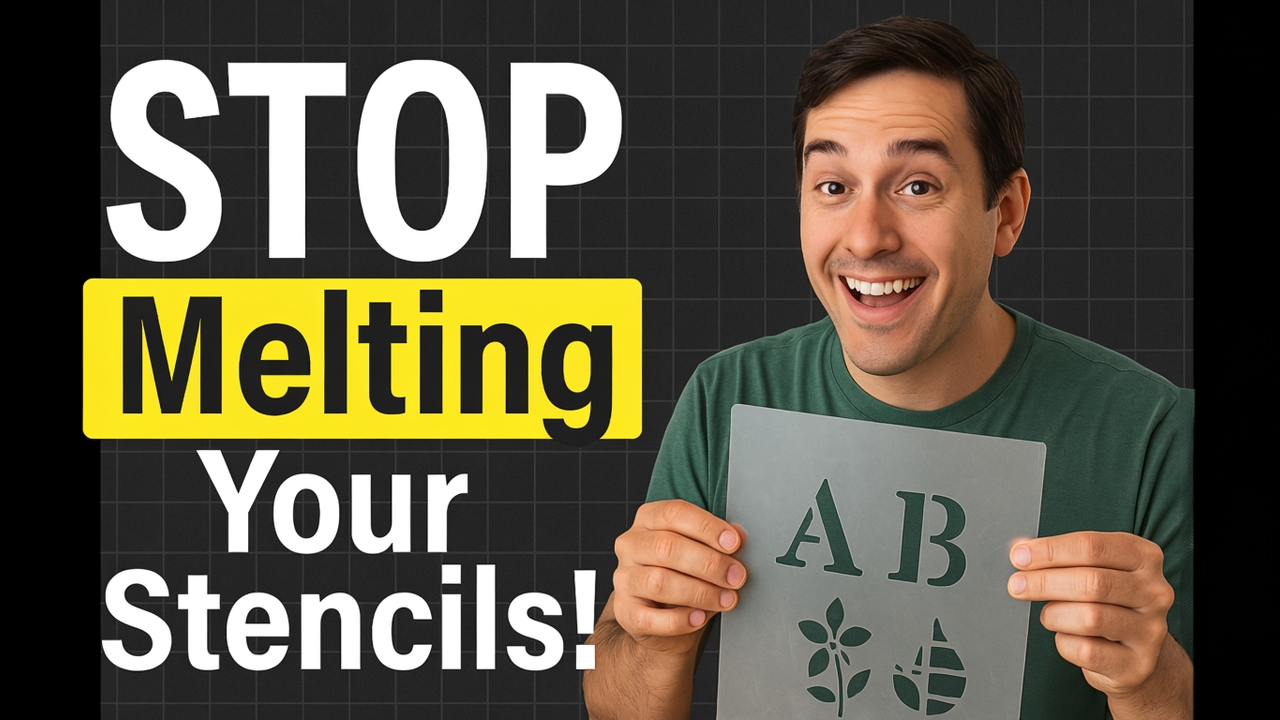
The Problem: Why Mylar Melts
Most people lay their Mylar flat on the honeycomb tray. When the laser hits the metal tray underneath, the heat reflects back into the plastic. Because Mylar is so thin, that "flashback" heat melts the edges of your cut.
The Solution: The "Mylar Sandwich"
To get a perfect cut, we need to get the Mylar into the air. By elevating the material, the laser beam passes through the Mylar and dissipates into the air space below, rather than bouncing off the metal.
Materials Needed:
Laser: xTool P2 (though this works for most CO2 lasers)
Material: 7 Mil Blank Mylar Sheets
Tools: 8-10 Strong Neodymium Magnets and Digital Calipers
Step-by-Step Instructions
1. Build the "Sandwich"
Place four magnets on your honeycomb tray to act as "risers." Lay your 12x12 Mylar sheet on top of these magnets. Then, place four more magnets directly on top of the first set.
Pro Tip: If your design is large, place a small magnet in a "waste" area (a part of the Mylar that will be cut out and discarded) to keep the middle from sagging.
2. Manual Focus is Key
Since the Mylar is now floating in the air, your laser's auto-focus won't be accurate.
Use your digital calipers to measure the distance from the honeycomb tray to the top of the Mylar sheet.
Open xTool Creative Space (XCS) and manually input this height in the "Thickness" or "Focus" field.
3. Use the "Sweet Spot" Settings
For 7 mil Mylar, I have found that high speed and low power are the secrets to success.
SettingValue:
Power 16%-20%
Speed 150 mm/s
Passes1
The Results
When the job is finished, your stencil should pop right out. Because we used the "Sandwich" method, you’ll notice the edges are sharp and white—not melted or charred.
Have you tried cutting Mylar yet? Let me know in the comments if these settings worked for you, or if you’ve found a different "sweet spot" for your machine!
This blog publishes affiliate links. An affiliate link means I may earn a commission if you make a purchase through my link, without any extra cost to you. Your support is greatly appreciated!